Instructions for using
the AutoEco-Factor
application
1. How to install and activate the application
Download the AutoEco-Factor app from the AppStore (for iPhone devices) or PlayMarket (for Android devices).
iOS
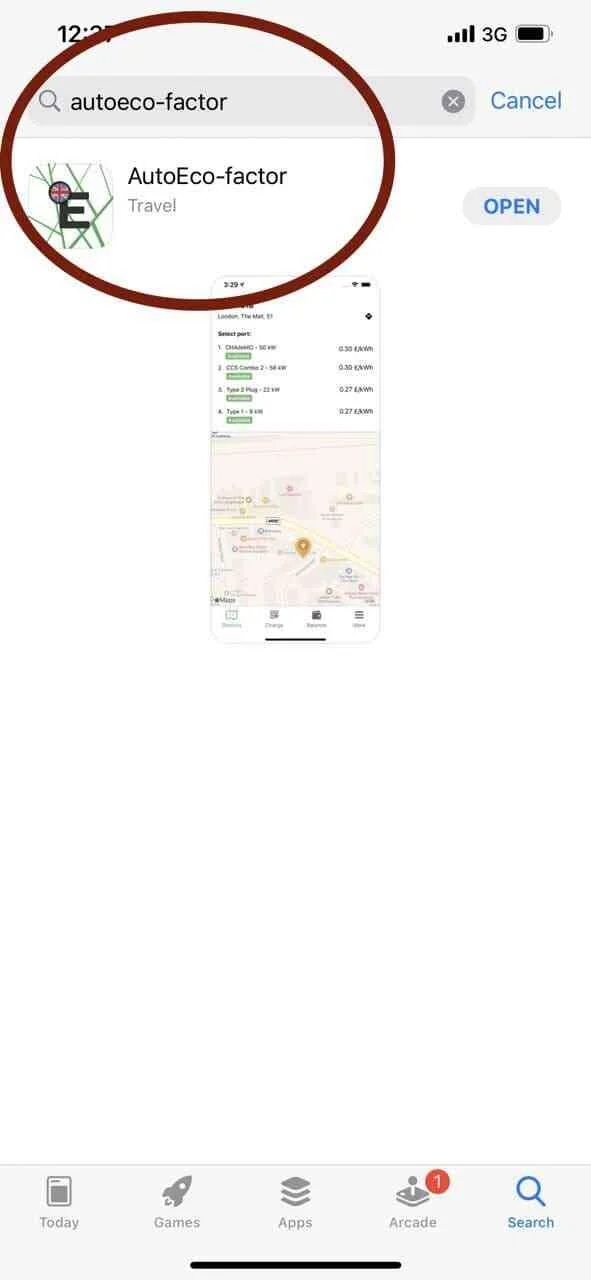 Registration
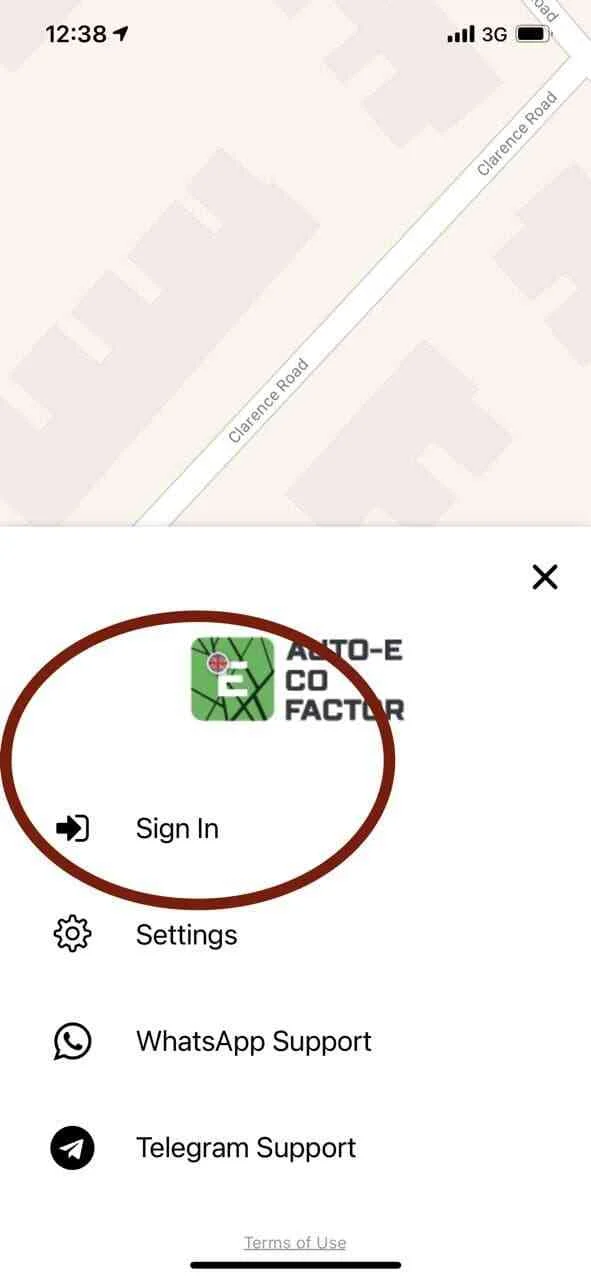 Filling the phone number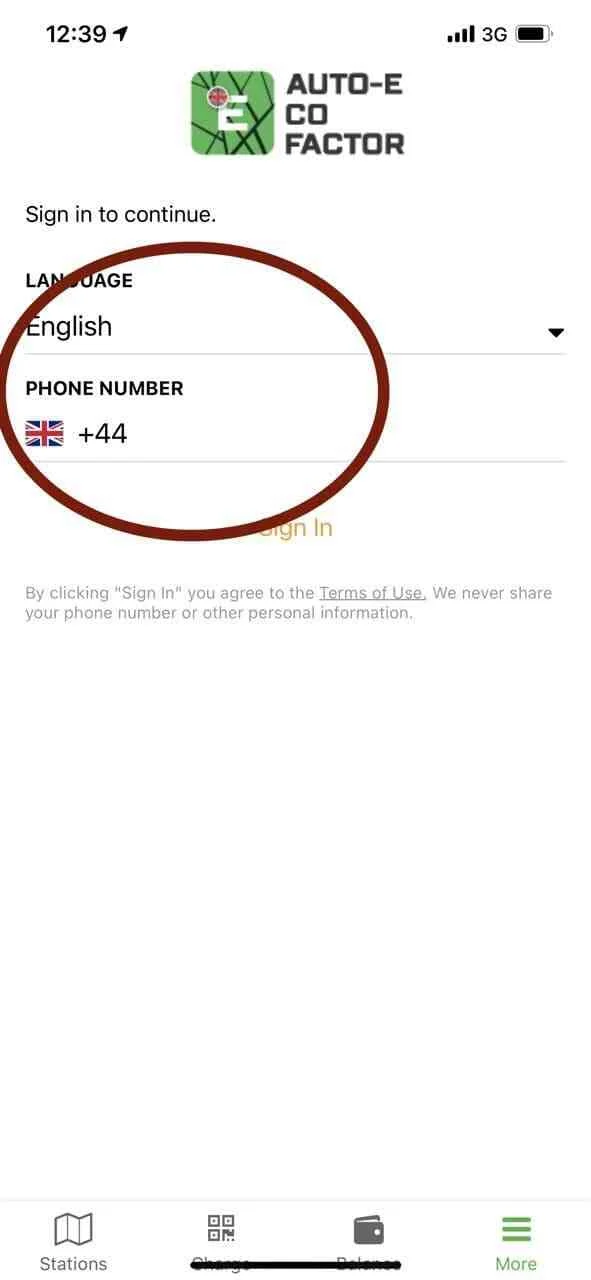
Android
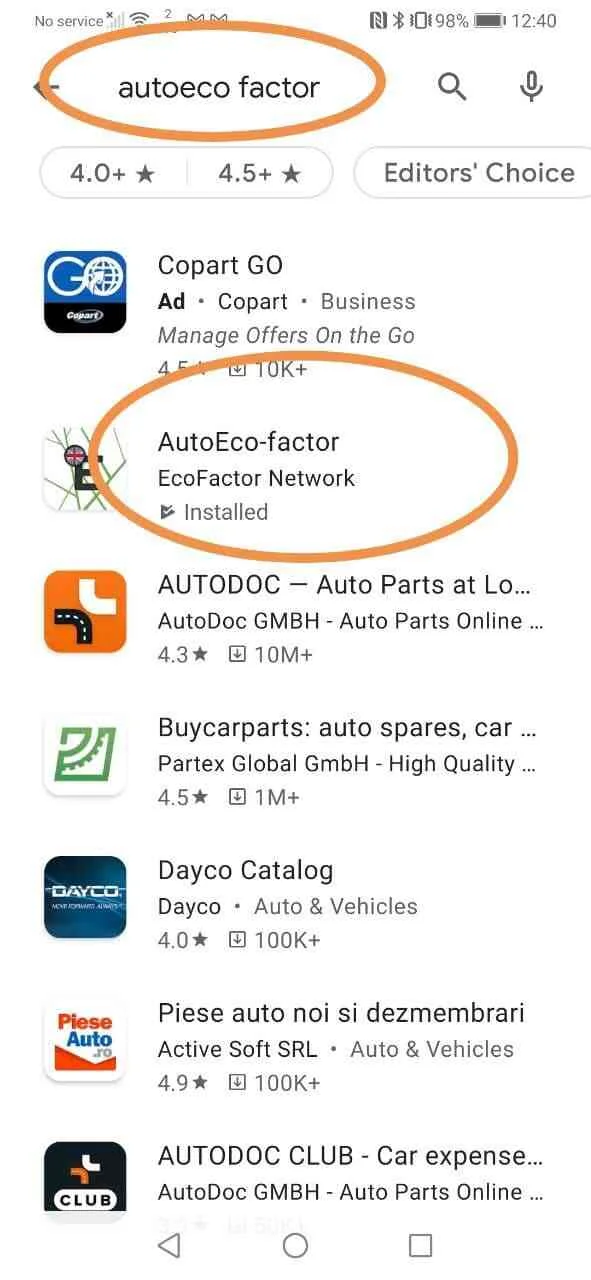 Registration
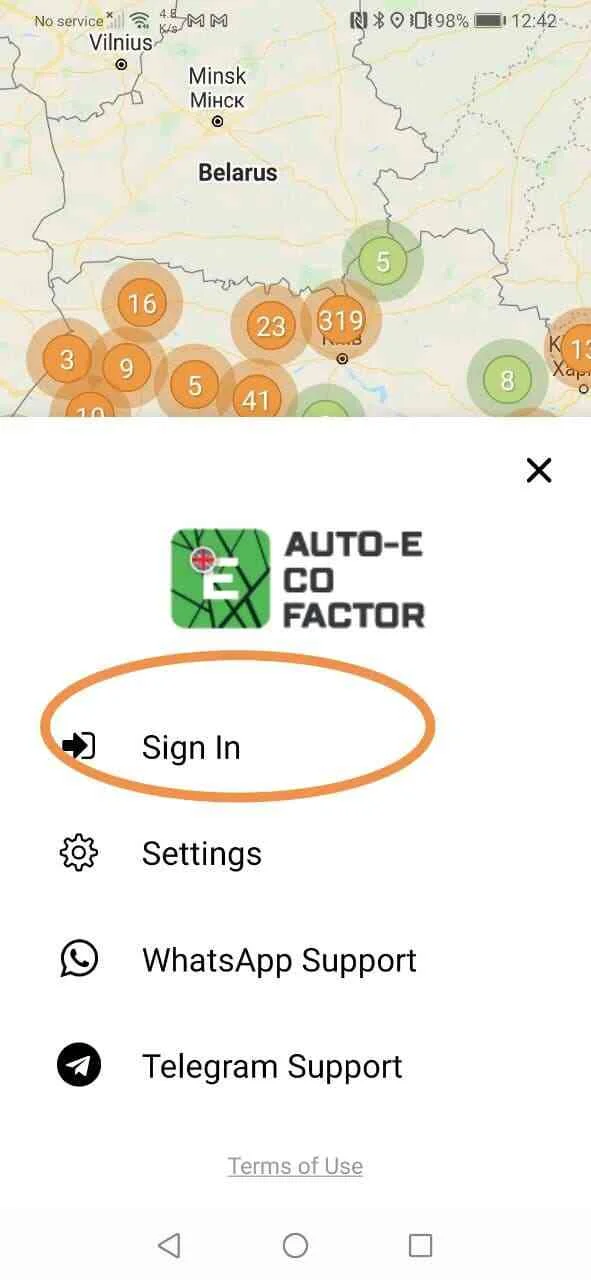 Filling the phone number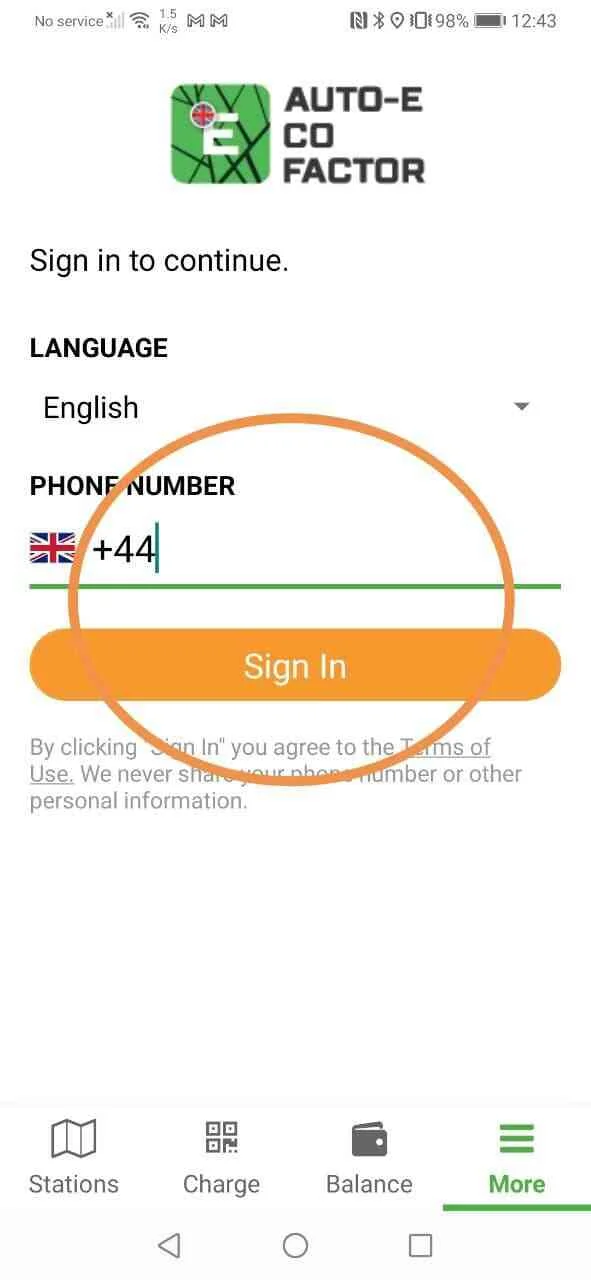
2. How to display the list of stations
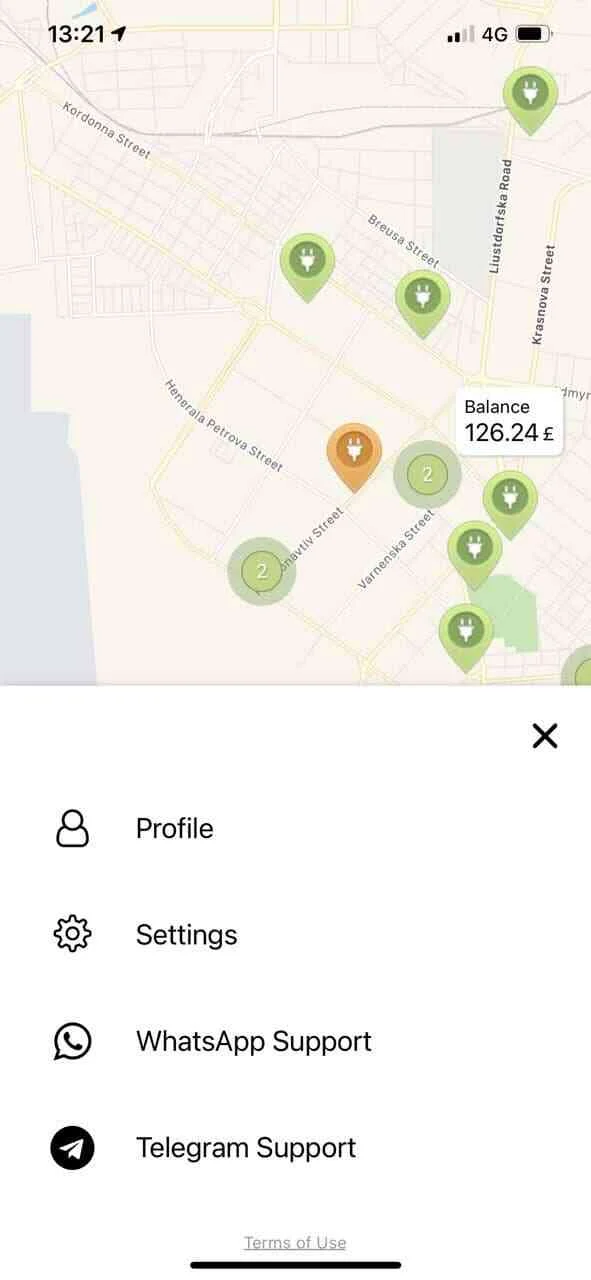
The application will then ask you to provide access to your geolocation, or specify the exact address where you will be at this time to display a list of stations.
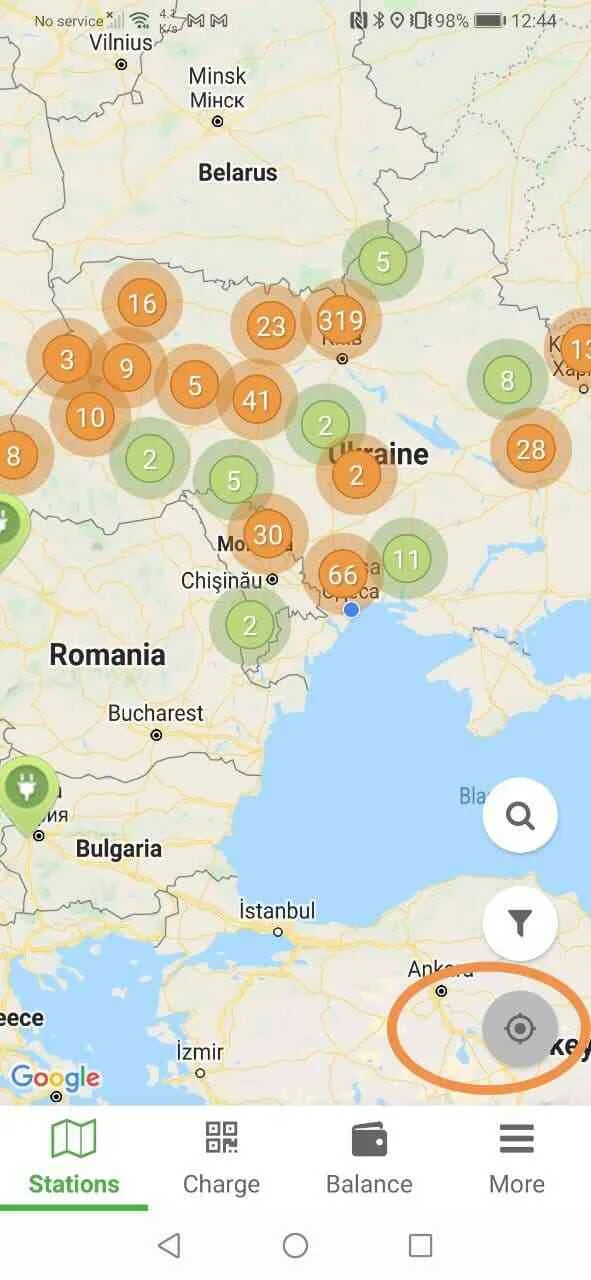 Manual search
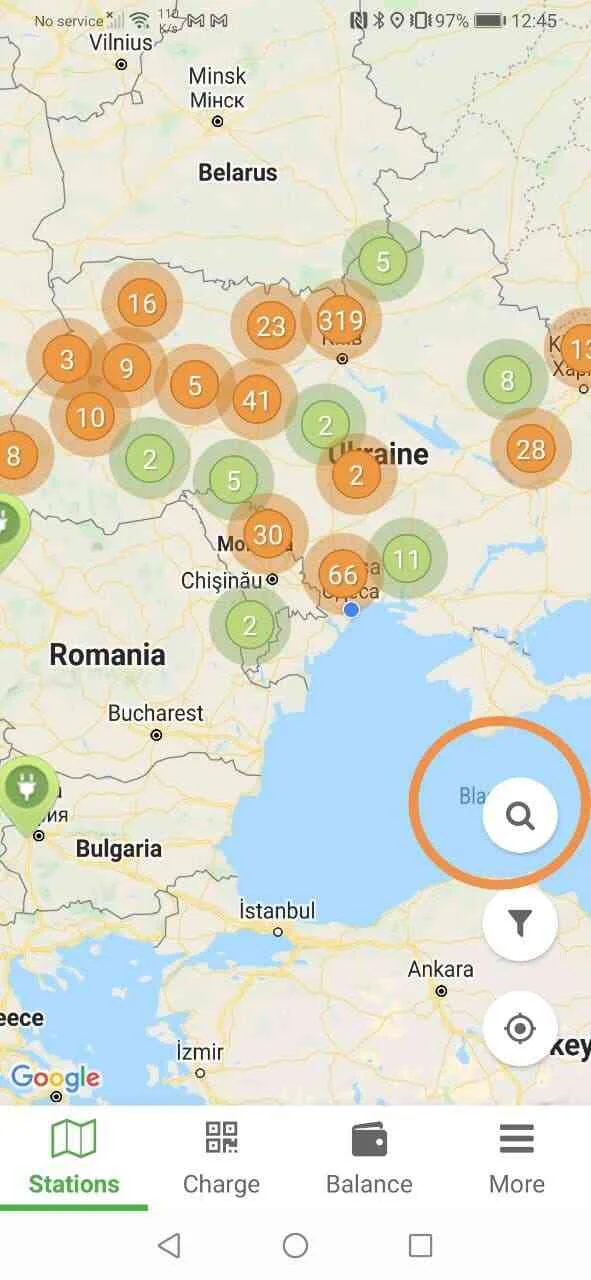 Street or station name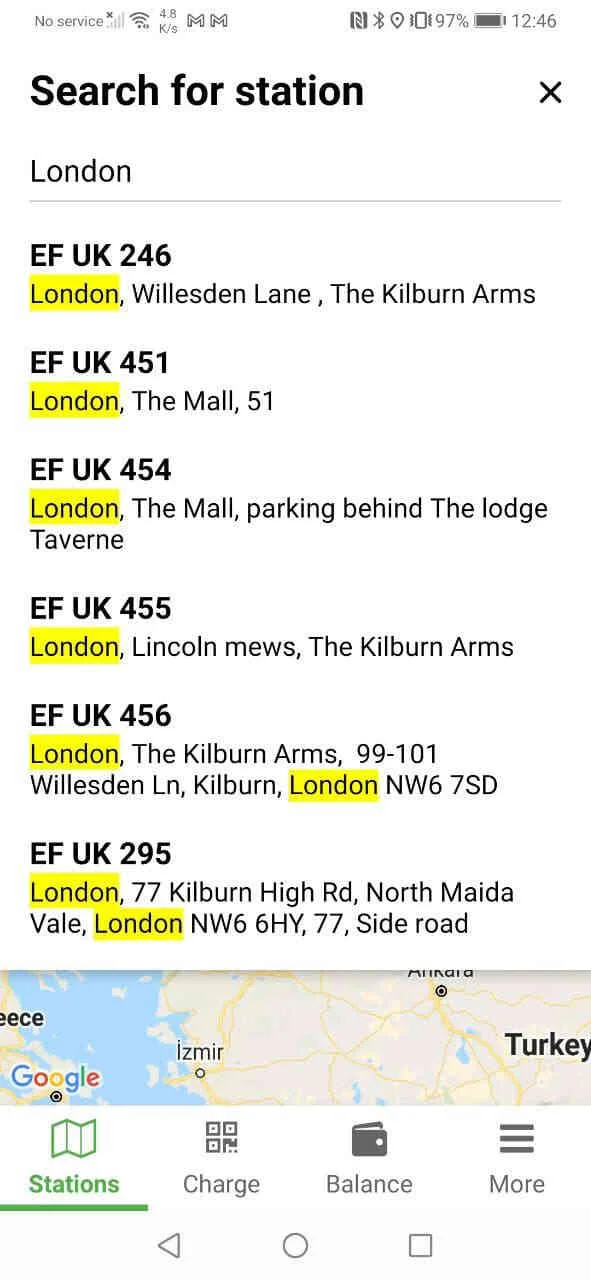
Pay attention!
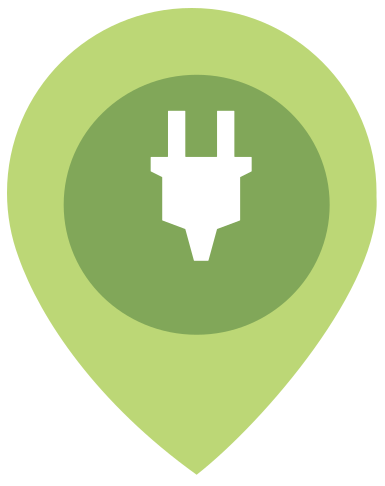 Green - the station does not provide a fast charging port.
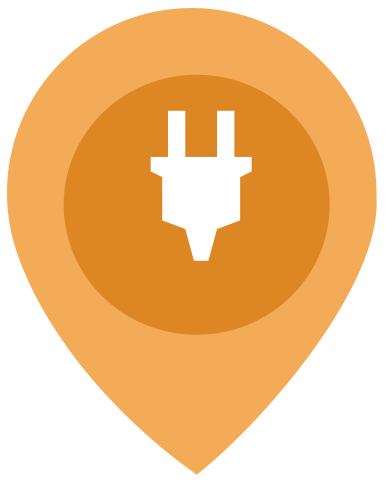 Orange color - the station has a fast charging port.
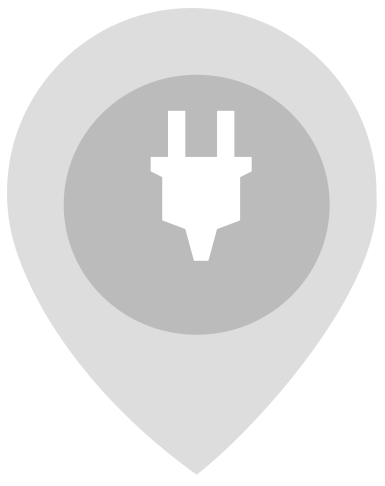 Gray - Offline station or not available.
Port settings - manual settings
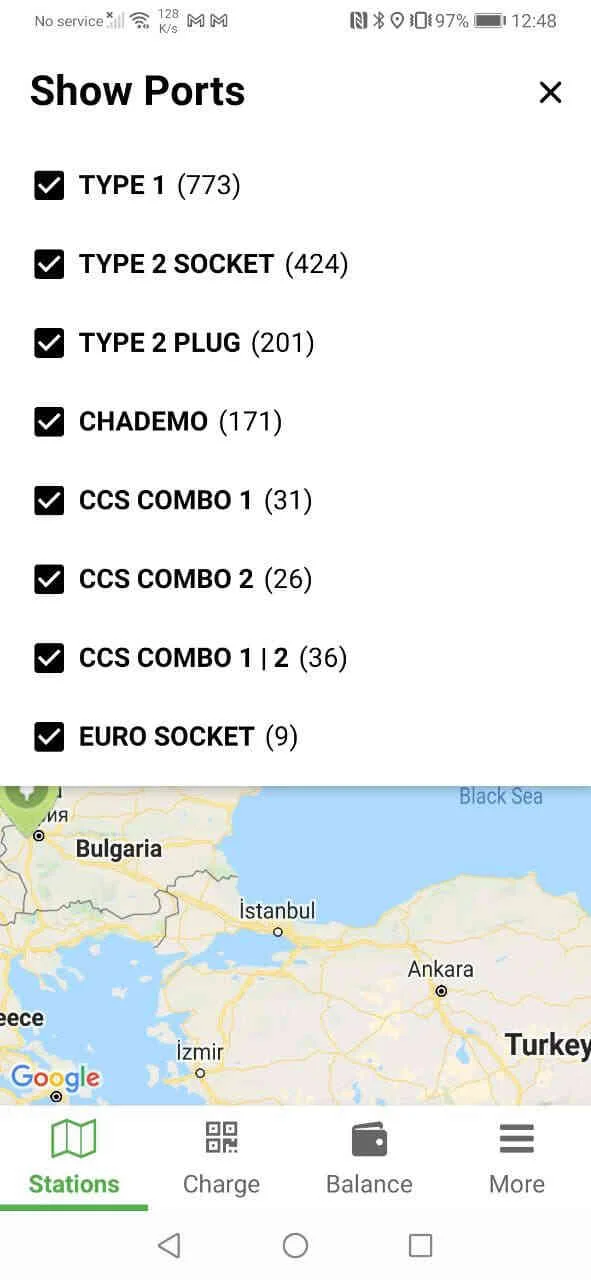
You can customize the display of the ports you need. Note that if you turn off all ports, you will not see available stations on the map.
3. How to charge
If the application asks you to provide access to the smartphone camera, click "allow", then point the smartphone camera at the QRcode located on the station. After scanning the QR code, the application will automatically connect the car to the station and start the charging process, provided that the cable is connected to the car.
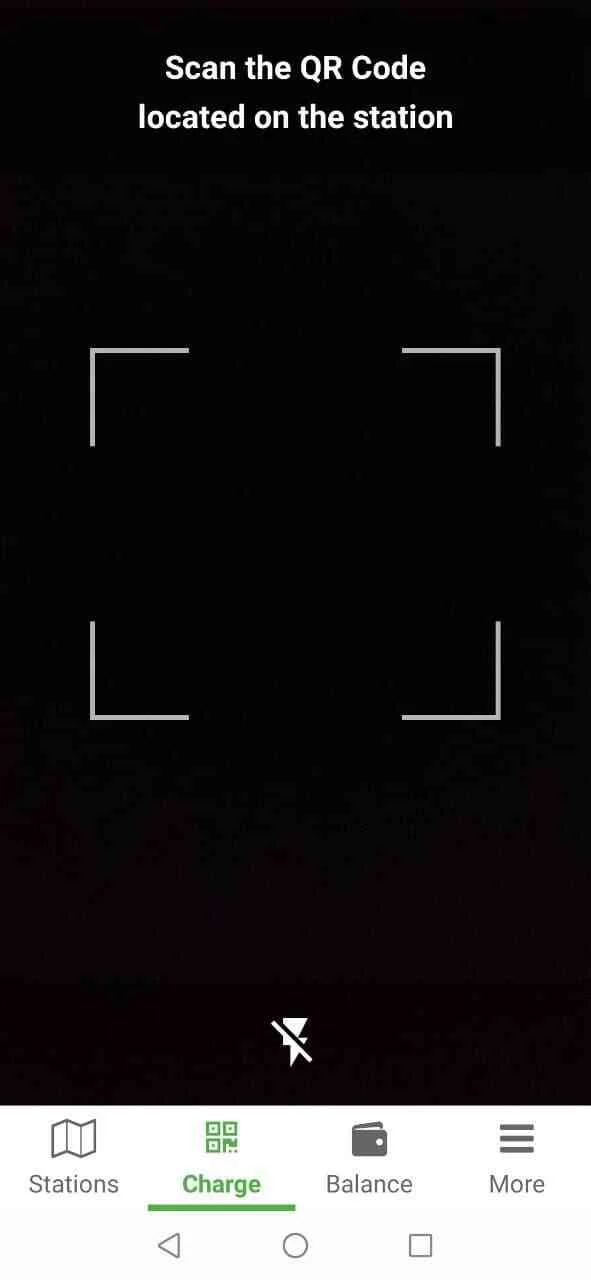 QR code placement (example)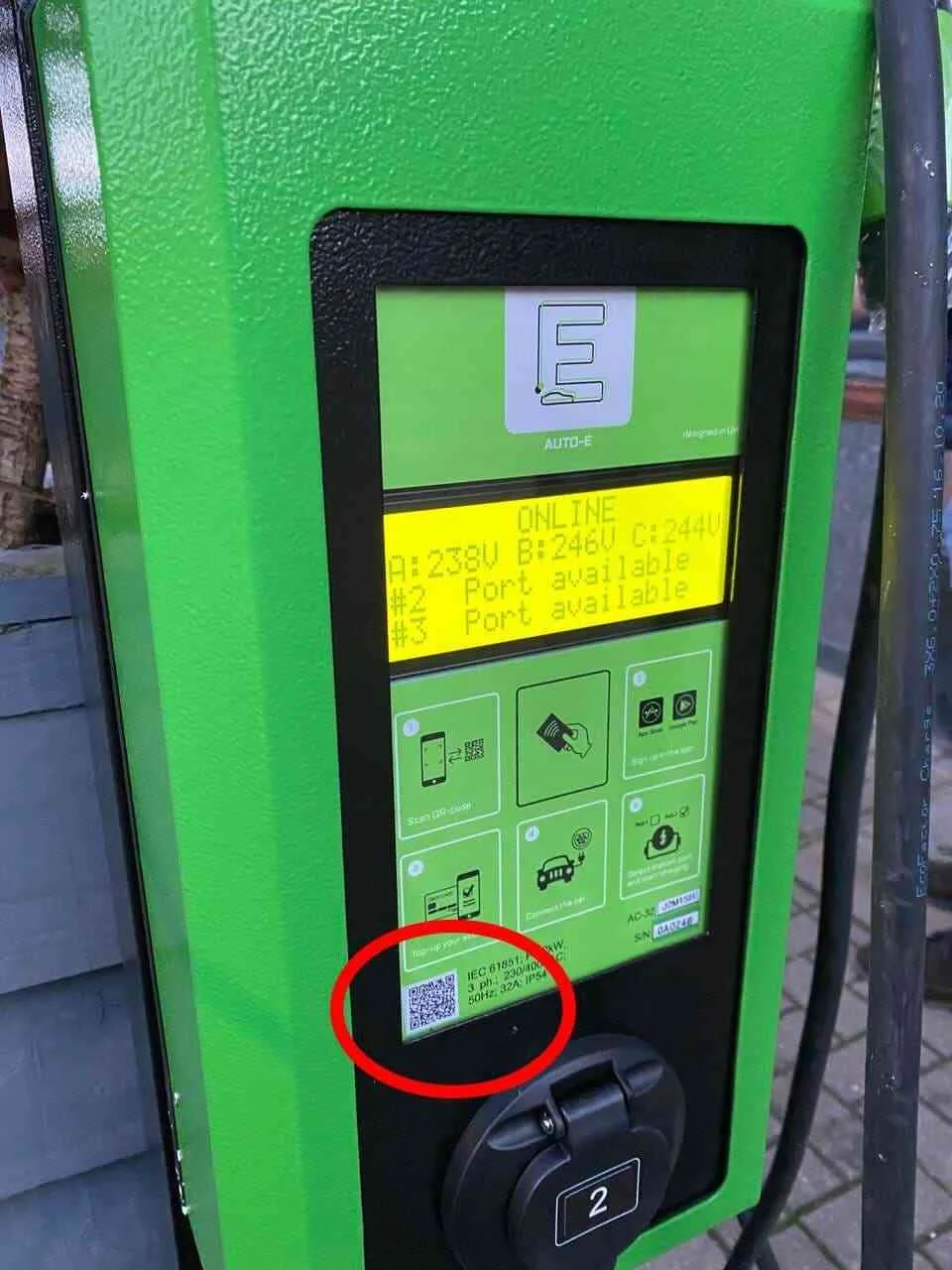
4. How to charge the car by manual input
Enter the name of the station you want to find in the search bar.
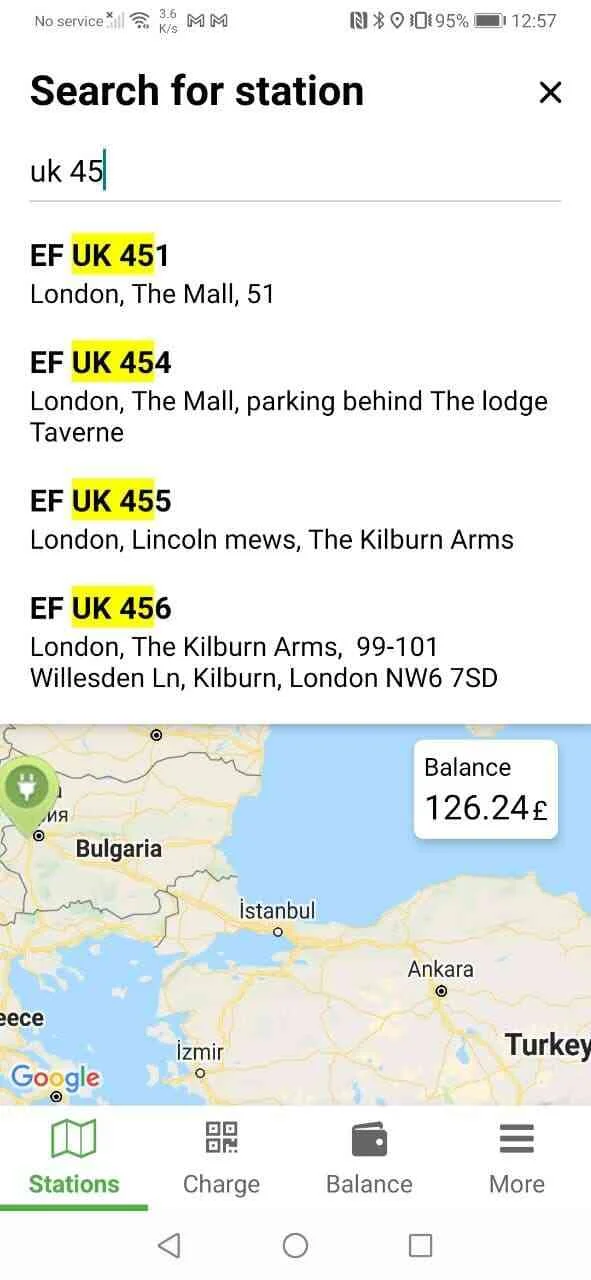
Next you will see the status of the ports:
 2. The port is free, no cars are connected
 3. The process of charging the car
 4. Idle — if the car is fully charged but the cable hasn’t been disconnected.
If you have connected the cable to the car it will be written as in item 1 "Connected".
 Then press "Start charging"
 The "Reserve until" button means that a port at this station will be unavailable for other users until the specified time.
If the port is connected to a car, then you will see the following information:
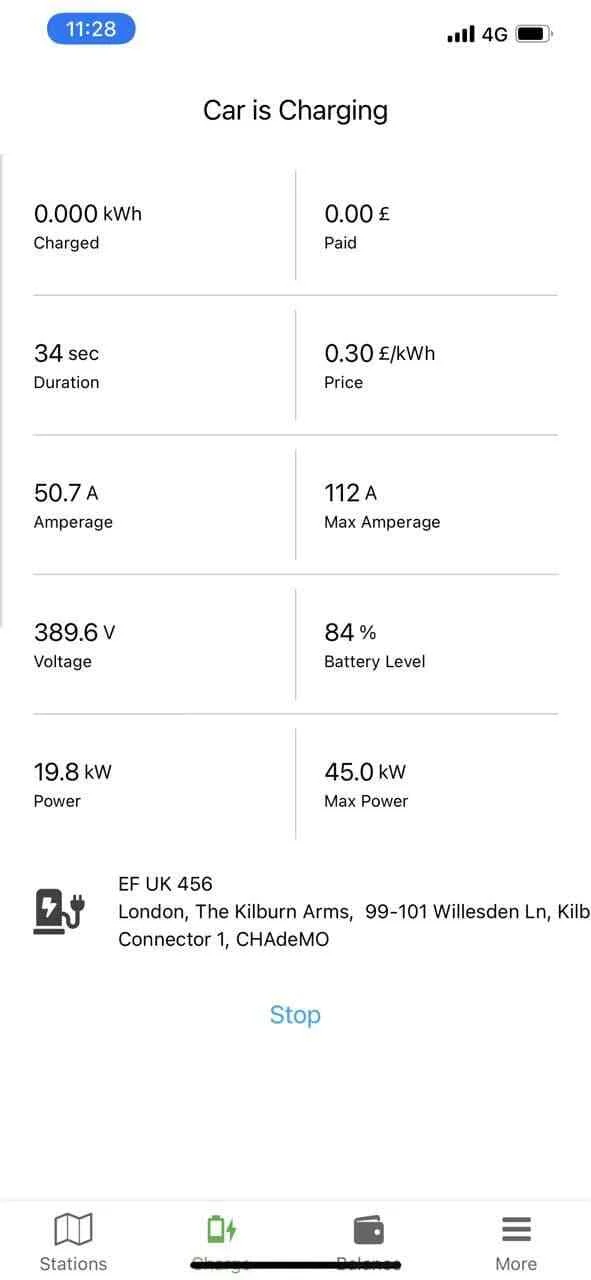
Next you will learn: